


Photo Collage - Pic Grid Maker
3.92.19K Reviews
App Specs
- Version
- 2.9.50
- Updated On
- License
- Free
- Downloads
- 10,000,000+
- Developer
- Magic Photo Collage & Photo Editor - CollageArt
- Categories
- Photography
- Platform
- Android
Screenshots




 Analysis by AppCompare
When I want to share several related photos as one image, I care less about elaborate editing than about finding a layout that lets each picture read clearly. Photo Collage - Pic Grid Maker is built around that simple job: choosing a group of pictures, arranging them in a grid or a more decorative template, then adding finishing touches such as text. The result is a practical way to turn a camera-roll cluster into one image without first learning a full photo-editing suite.
Why having many layouts changes the process
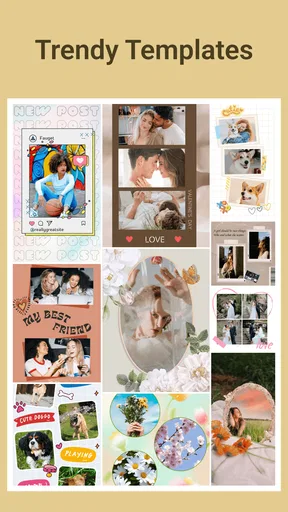
The app’s defining strength is the breadth of its layout and template choices. Instead of treating a collage as a fixed grid, it gives you room to compare different arrangements for the same set of pictures. That matters when one photo is a portrait, another is a wide scene, and a third is a small detail: the first layout you try may crowd a face or give an unimportant background too much space, while another can make the group feel balanced.
In my view, this choice is most useful before you start decorating. I’d first decide what the collage should communicate, then try layouts that keep the important subjects visible. A tidy grid suits a clear before-and-after or a set of similar shots; a less uniform template can make a casual collection feel more like a keepsake. Having plenty of options is helpful, but it also means you can lose time browsing. I get better results by choosing a purpose and a rough photo count before opening the layout picker.
How I’d build a collage that stays readable
I would begin by selecting photos that belong together rather than trying to rescue a random batch with a clever design. For a weekend walk, for instance, I might choose one landscape, a close-up of something I noticed, and a couple of pictures with friends. Then I’d compare a few arrangements and check that faces and key details are not squeezed into narrow cells. This quick review is worth doing before adding text or filters, because decorative choices cannot fix a layout that gives the best image too little room.
Text can give a collage a useful anchor: a place, occasion, or short note can help someone understand the collection at a glance. I’d keep it brief and make sure it doesn’t compete with the photographs. The same restraint applies to filters and borders. A consistent treatment can help pictures taken in different light feel like one set, but piling on effects can make the images harder to appreciate. I prefer to make one change at a time and compare it with the plain version before deciding it improves anything.
After arranging the pictures, I’d inspect the finished image at the size where people will see it. A collage that looks polished while zoomed in can become busy when viewed as a small social post or message attachment. If the text is hard to read or a face is tiny, I’d return to the layout rather than add more embellishment. That is a useful habit with any collage maker, and the number of templates here makes it especially worthwhile to check a second arrangement instead of settling immediately.
A natural fit for everyday photo groups
The app makes most sense for moments that are better told with a handful of images than with one standout shot. I can picture using it after a family birthday: one photo of the cake, a few candid moments, and a group picture can become a single recap to send to relatives. It can also help collect progress photos, a small set of recipes, or snapshots from a day out into something easier to post or keep together. The benefit is not that every collage becomes professional artwork; it is that related pictures become simpler to present as one unit.
Worth Reading Before You Choose

EA SPORTS FC Mobile 26 Is a Bigger Football Game, but It Takes Time

Flipboard Shows What News Apps Must Do Beyond the Feed

Switching to Android Auto Means Rethinking Your Driving Routine

Google Calendar Makes a Crowded Week Easier to Manage

Ludo King Makes the Most of the Minutes Between Plans

Baby Panda World Brings Quick Play to Modern Phones, but Its Game Library Feels Busy
This is also a handy approach when I want to share several pictures but don’t want to make a long sequence of separate posts. I’d select only the images that add something distinct, then use a layout that gives the strongest photo a little visual prominence. If all the pictures are nearly identical, a collage can feel repetitive; choosing fewer, more varied frames usually tells the story better. That selection step is often more important than the template itself.
What to expect from the experience
The interface is described as easy to navigate, and the app’s focus on ready-made layouts, text, and other adjustments should feel approachable to someone who has not used a dedicated design tool. The developer is Magic Photo Collage & Photo Editor - CollageArt. The app is free to download, with optional in-app purchases ranging from $0.99 to $34.99 per item, so I’d treat the free experience as a sensible place to see whether its workflow suits me before spending anything.
Photo Collage - Pic Grid Maker has an average rating of 4.1 from around 45,000 ratings, with about 2,100 written reviews and over 10 million installs. It is rated for Everyone, and its current version is 2.9.32, following its release on August 10, 2020. Those figures suggest it has found a broad audience, but they do not tell me whether its particular editing style fits my needs. I’d judge it by the practical task: can I select a group, find a layout that serves it, and finish without fighting the interface?
For a quick personal collage, I would not expect to need a desktop editor. But if I were building a carefully branded campaign, preparing print-ready layouts, or requiring precise control over typography and image placement, I’d compare it with a more advanced design or photo-editing tool. A collage-focused app is appealing because it keeps the basic workflow close at hand; that same focus can be limiting when a project calls for detailed control beyond arranging and decorating pictures.
Small decisions that improve the result
One practical tip is to make a shortlist before selecting a template. I’d remove near-duplicates, keep a mix of wide and close views if they tell different parts of the story, and make sure the main subject is easy to recognize. This reduces the temptation to keep adding pictures just because the layout can hold them. More cells do not automatically make a better recap, especially when the finished collage will be viewed on a phone.
Another useful check is whether the pictures share a visual thread. They might all show the same outing, color, person, or stage of a project. When the connection is clear, the collage feels intentional even with a simple grid. When the photos vary widely, a short text label can explain why they belong together, but I would use it sparingly. The app’s text options are most helpful when they clarify the collection, not when they turn the image into a crowded poster.
I’d also save a plain, lightly edited version before committing to stronger decoration if I’m unsure. Comparing versions makes it easier to notice when a border or filter adds coherence and when it simply draws attention away from the pictures. This is a small workflow choice, but it prevents endless tweaking and helps me stop when the collage already does its job.
Where it sits among photo tools
Compared with using a phone’s built-in photo sharing, a dedicated collage maker is useful when I want several images combined into one composed picture rather than sent as an album or a sequence. Compared with a broad design app, a collage-focused tool may be quicker for this particular task because the starting point is arranging photos, not building a design from a blank page. The trade-off is that a broader editor may be a better fit when I need layers, exact alignment, or a larger range of design controls.
There is no need to use a collage for every group of photos. If the images are individually important, sharing them separately preserves their detail and gives each one room. If I want a compact visual summary, a grid can be easier to scan and pass along. I’d choose based on how I expect someone to view the pictures: a collage for a quick overview, separate images when the details deserve attention.
Getting Started with Photo Collage - Pic Grid Maker
First things first, downloading the app is a breeze. It’s available on both Android and iOS, so no matter your device preference, you’re covered. Once installed, the interface is clean and user-friendly. This is a huge plus because nobody wants to waste time trying to figure out how to navigate a new app.
Features That Make a Difference
What sets Photo Collage - Pic Grid Maker apart from the rest? Let’s dive into its standout features.
Variety of Templates: You're greeted with a wide selection of templates. Whether you’re aiming for a classic grid or something more artistic, there’s something for everyone. I had a blast experimenting with different layouts to see what fit my photo collection best.
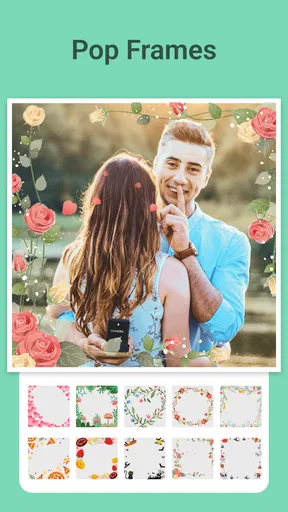
Customization Galore: Beyond templates, the customization options are phenomenal. You can adjust borders, add filters, and even insert text. I found myself spending a good chunk of time just trying different combinations to see what looked best.
Easy Sharing: Once you’ve crafted your masterpiece, sharing it is as simple as a few taps. Whether you're posting on social media or sending it to a friend, the app makes it straightforward. I appreciated the ease of uploading directly to Instagram, saving me time and effort.
User Experience and Performance
The app runs smoothly, which is a relief. There’s nothing worse than an app that crashes mid-creation. I tested it with various photo sizes and never encountered any hiccups. The developers clearly put effort into ensuring a seamless user experience.
Another thing worth noting is the app's responsiveness. Even on my older device, actions were quick and lag-free. This means you can focus more on being creative rather than dealing with technical issues.
Why You’ll Love It
If you're someone who loves to get creative with photos, Photo Collage - Pic Grid Maker is a must-have. It’s perfect for anyone from hobbyists to social media influencers. The ability to turn ordinary photos into extraordinary collages is a game-changer.
Fun Factor: Let’s face it; this app is just plain fun to use. The satisfaction of seeing a collage come together is second to none. Plus, it’s a fantastic way to relive your favorite memories by grouping them together beautifully.
Final Thoughts
In conclusion, Photo Collage - Pic Grid Maker is a versatile and enjoyable tool for anyone looking to spice up their photo collections. With its user-friendly interface, plethora of features, and seamless performance, it's a top contender in the world of collage-making apps.
If you're ready to unleash your creativity and create stunning photo collages, give this app a try. It’s definitely worth the download, and before you know it, you’ll have a collection of collages that you’ll be proud to share with the world.
Pros
- Easy-to-use interface for quick editing.
- Wide variety of templates available.
- High-quality output with HD resolution.
- Supports social media sharing directly.
- Customizable grid sizes and layouts.
Cons
- Contains in-app purchases for premium features.
- Ads can be intrusive during editing.
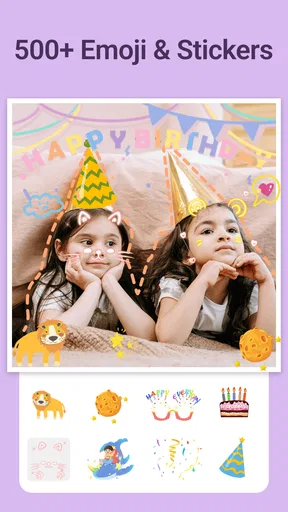
- Limited free sticker options.
- Some templates require internet access.
- No offline editing for certain features.
FAQs for Photo Collage - Pic Grid Maker
What features does Photo Collage - Pic Grid Maker offer?
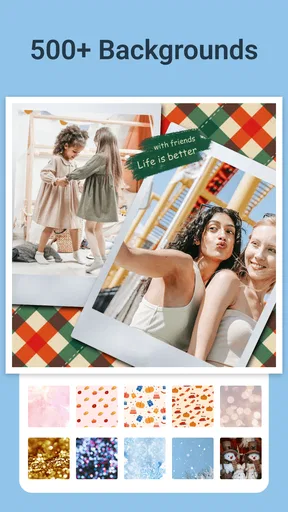
Photo Collage - Pic Grid Maker provides a wide array of features including customizable grid layouts, various background patterns, and a rich selection of stickers and fonts. Users can also adjust the aspect ratio and apply filters to enhance their images, offering a comprehensive toolset for creating stunning collages.
Is Photo Collage - Pic Grid Maker user-friendly for beginners?
Yes, the app is designed with an intuitive interface, making it accessible for users of all skill levels. Beginners can easily navigate through the options, select templates, and customize their collages without any prior experience. Tooltips and guides are also available to assist new users.
Does Photo Collage - Pic Grid Maker support sharing on social media?
Absolutely, the app seamlessly integrates with popular social media platforms like Instagram, Facebook, and Twitter. Users can directly share their creations from the app, ensuring their photo collages reach their audience quickly and effortlessly, with optimal quality maintained during the sharing process.
Are there in-app purchases in Photo Collage - Pic Grid Maker?
Yes, while the app offers a robust set of free features, there are additional premium options available through in-app purchases. These include exclusive templates, stickers, and advanced editing tools, providing users with more creative possibilities should they choose to upgrade.
How does Photo Collage - Pic Grid Maker ensure privacy and data security?
Photo Collage - Pic Grid Maker prioritizes user privacy by implementing strict data security measures. The app requires minimal permissions, and any personal data is safeguarded according to industry standards. Users can review the app's privacy policy for detailed information on data handling practices.


